Connecting Semrush MCP to your AI assistants takes just a few minutes. Follow the setup instructions for your specific AI platform below.
ChatGPT
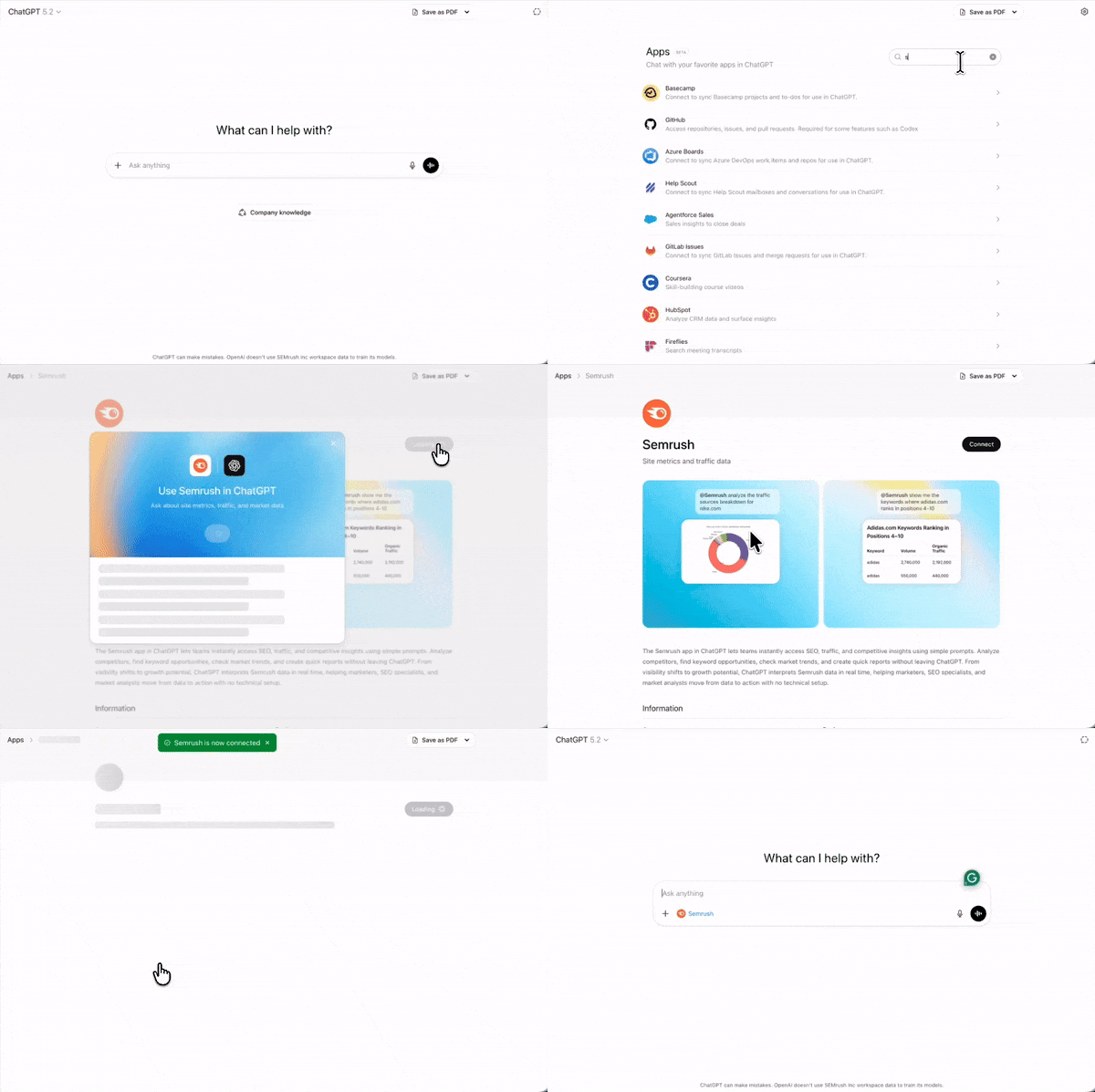
- Access the Semrush ChatGPT app
- Click Connect to enable the app
- In the modal, click Continue
- Review the access details on the permission screen, then click Approve
To use the Semrush app within ChatGPT chats, tag it directly as @Semrush in your prompts.
Claude
- Access the Semrush app inside Claude
- Click Connect to enable the app
- Review the access details
- Click Approve

To use the Semrush app within Claude chats, tag it directly as @Semrush and start asking questions.
Claude Code
- Open your terminal and run this command: claude mcp add semrush https://mcp.semrush.com/v1/mcp -t http
- Open Claude Code and run the /mcp command
- Select Semrush MCP from the list of MCP integrations
- Select Authenticate
Cursor
- Open Cursor and go to Settings → Cursor Settings → Tools & MCP
- Add the following Semrush MCP configuration to your Cursor MCP settings:
{ "mcpServers": { "semrush": { "url": "https://mcp.semrush.com/v1/mcp" } } } - Save the changes
VS Code
- Create a .vscode/mcp.json file in your VS Code workspace
- Add the following MCP configuration to the file:
{ "servers": { "semrush": { "url": "https://mcp.semrush.com/v1/mcp", "type": "http" } } } - Save the changes
Gemini
The Semrush MCP server authenticates with Gemini (Gemini CLI) using your Semrush API key.
1. Add the Semrush MCP server to Gemini. Open your terminal and run:
gemini mcp add --transport http \
  --header "Authorization: Apikey YOUR_API_KEY" \
  semrush https://mcp.semrush.com/v1/mcp
Replace YOUR_API_KEY with your actual Semrush API key.
2. Verify the server was added. Run:
gemini mcp list
You should see Semrush listed among your configured MCP servers.
Once added, the Semrush MCP server is available in Gemini CLI and can be used in your workflows.
Perplexity
- Access the Semrush app inside Perplexity
- Click Add connector to enable the app

- Review the access details on the permission screen
- Click Continue
Please note that you need a paid Perplexity account to add custom MCP connectors, including Semrush’s.